
The Ergonomic Setup That Transformed My Programming Productivity
After years of coding with basic peripherals, I finally invested in a proper ergonomic setup: mechanical keyboard, ergonomic mouse, dual monitors, and a quality chair. The difference wasn't just comfort, it fundamentally changed how long I could stay focused and how much I could get done.
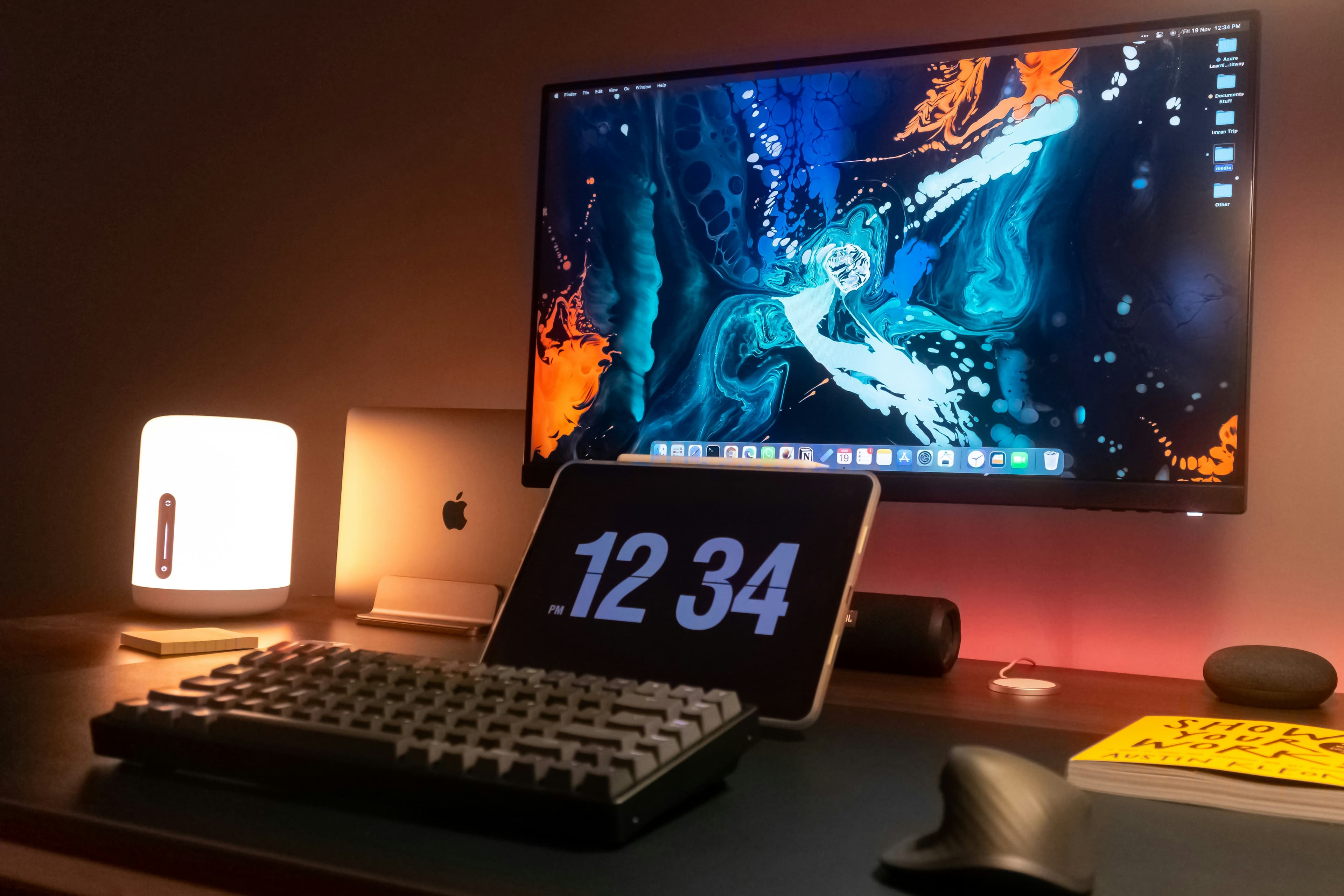
I spent the first five years of my programming career hunched over a laptop keyboard, squinting at a single 13‑inch screen, and sitting on whatever chair happened to be nearby. I thought discomfort was just part of the job, something you powered through until your back started complaining. Then I spent a month working from a friend's home office, and everything changed. His setup wasn't fancy, but it was intentional: a mechanical keyboard, an ergonomic mouse, two monitors, and a chair that actually supported his posture. By the end of that month, I wasn't just more comfortable, I was coding faster, staying focused longer, and finishing the day without that familiar ache in my shoulders.
While I'm writing this from a programmer's perspective, the ergonomic setup I'm recommending here isn't just for coding, it's equally valuable for anyone doing extended computer work. Whether you're writing documents in Microsoft Office, managing spreadsheets, handling customer service online, doing data entry, creating presentations, or any other office-related work that keeps you at a desk for hours, these improvements will make a real difference. The same principles apply: a good chair prevents back pain, an ergonomic mouse reduces wrist strain, a mechanical keyboard improves typing accuracy, and dual monitors eliminate constant tab switching, regardless of what software you're using.
My Current Setup (What I Use)
Affiliate disclosure: some links in this post are Amazon affiliate links. If you buy through them, I may earn a small commission at no extra cost to you. I only link products I genuinely recommend and would be happy to use myself.
If you want the simplest path, this is what I personally use. I chose these because they fit my day to day work and how I like to use my computer outside of work too.
- Keychron V3. Compact tenkeyless layout keeps your mouse closer and reduces shoulder reach.
- View Product. I like this shape because I'm a gamer as well, and it still feels great for long work sessions.
- SIHOO Ergonomic Chair. A genuinely solid, affordable option that still gives you real ergonomic support.
Where to Start (Quick Decision Guide)
If you're not buying everything at once, start with the item that fixes your biggest pain point. This order gives the fastest improvement for most people.
Back pain, posture, fatigue
- Premium: Herman Miller Aeron.
- Best value: Steelcase Chair.
- Budget: SIHOO Ergonomic Chair.
Wrist strain, shoulder tension
- Office ergonomics: View Product.
- Gaming shape: View Product.
Typing fatigue, finger pain
- Default: Keychron V3.
- With numpad: Logitech MX Mechanical Keyboard.
Too many tabs, slow workflow
If you feel slow because you keep switching tabs and windows, add a second monitor or an ultrawide and keep docs and browser visible next to your editor.
Copy This Setup (Bundles)
If you want to remove decision fatigue, pick one bundle and move on. These combinations work well together and cover most use cases.
- Premium bundle: Chair Herman Miller Aeron. Mouse View Product. Keyboard Keychron V3.
- Best value bundle: Chair Steelcase Chair. Mouse View Product. Keyboard Keychron V3.
- Budget bundle: Chair SIHOO Ergonomic Chair. Mouse View Product. Keyboard Keychron V3.
- Spreadsheet bundle: Chair Steelcase Chair. Mouse View Product. Keyboard Logitech MX Mechanical Keyboard.
Fast Setup in 20 Minutes
The purchases matter, but the setup matters too. Do this once and you will feel the difference immediately, even before you change any hardware.
- Chair height: feet flat, knees roughly level with hips, no pressure behind the knees.
- Armrests: shoulders relaxed, elbows close to your body, forearms supported lightly.
- Keyboard: keep it close, wrists neutral, do not bend wrists up while typing.
- Mouse: keep it close to the keyboard, avoid reaching forward or outward for long periods.
- Monitor: top of screen near eye level, screen about an arm's length away, increase font size before you lean forward.
- Break rule: stand up for a minute every hour, it resets your posture and reduces stiffness.
If you only do one thing today: pick your chair and fix your monitor height. Those two changes usually deliver the fastest improvement in comfort and focus.
Before You Buy (Honest Notes)
- If you prefer very soft, plush chairs, some mesh chairs can feel firm. They are designed for support, not a cushy sofa feel.
- If you need a number pad daily, pick the full-size keyboard option (the numpad link above).
- If you like very light mice, some productivity mice can feel heavy. Shape and weight preference is personal.
- If you like a gaming mouse shape and palm grip, that style can be a better fit than an office mouse, even for long work sessions.
Quick Recommendations (If You Just Want Links)
Reminder: some links below are Amazon affiliate links. If you buy through them, I may earn a small commission at no extra cost to you.
If a specific model is unavailable in your region, choose the closest equivalent with the same key features. For big items like chairs, also check return policy and warranty before you buy.
- If you only buy one thing: Herman Miller Aeron. A proper ergonomic chair can completely change how your back feels at the end of the day.
- Best value upgrade: Steelcase Chair. Serious comfort and adjustability without going all the way to premium pricing.
- Budget option: SIHOO Ergonomic Chair. Solid ergonomic features at a fraction of premium chair prices, great entry point for proper back support.
- Best small upgrade: View Product. Huge comfort boost and better control with relatively little spend.
- If you prefer a gaming mouse shape: View Product. Great all day mouse if you like a palm grip and extra buttons.
- For heavy typists: Keychron V3. Compact, hot‑swappable, and tuned for long coding sessions.
Quick Buyer FAQs
- Do I need everything? No. Start with chair or mouse, then add the next upgrade only after you feel the first one.
- Is a gaming mouse OK for work? Yes. If the shape fits your grip and wrist position, it can be comfortable all day.
- Should I worry about returns? For chairs, yes. Fit is personal, so a good return policy and warranty removes most of the risk.
Why Your Setup Matters More Than You Think
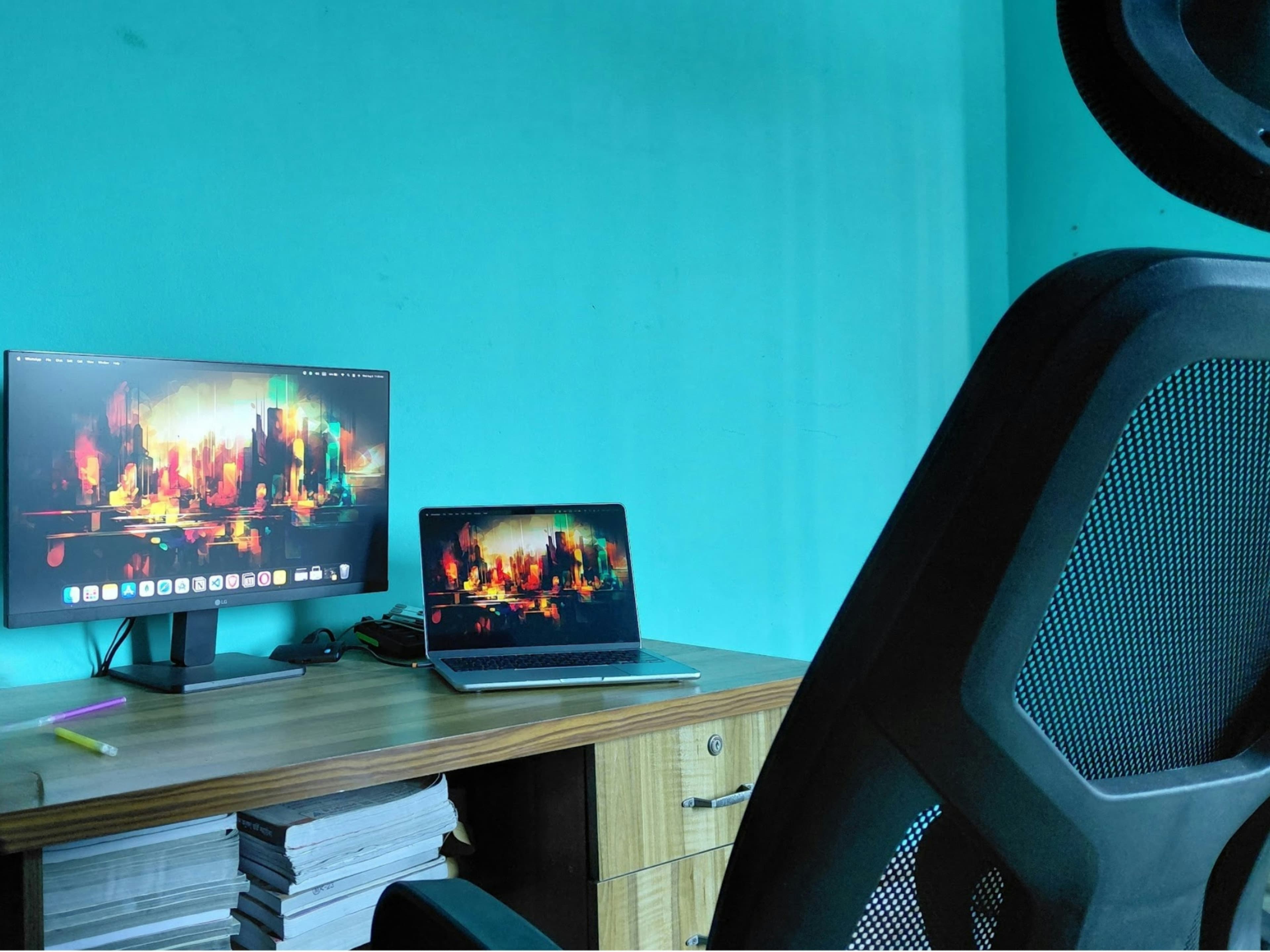
Most developers treat their physical setup as an afterthought. We obsess over frameworks, algorithms, and code quality, but we'll code for eight hours on a kitchen chair if that's what's available. The problem is that your environment doesn't just affect comfort, it directly impacts your ability to think clearly, type accurately, and maintain focus over long sessions. When you're constantly adjusting your posture, squinting at tiny text, or pausing to stretch your wrists, you're breaking your flow state. Those micro‑interruptions add up, and by the end of the week, you've lost hours of productive time to preventable discomfort.
“The best code editor in the world won't help if you can't sit comfortably long enough to use it effectively.”
The Research: What Studies Actually Show
This isn't just anecdotal. Ergonomics research is pretty consistent. When people improve chair support, monitor height, and input devices, they report less discomfort and they make fewer mistakes during long sessions.
Stress is part of it too. When you're constantly aware of your aching back or strained wrists, your brain is spending attention on managing discomfort instead of solving problems. Comfort does not make you lazy, it makes it easier to stay focused.
For programmers, the punchline is simple. Fewer micro interruptions means longer stretches of deep work. A better setup keeps you in flow for longer, and that shows up as better output over time.
In my case, the biggest difference was consistency. I stopped constantly adjusting my posture, I took fewer breaks for discomfort, and I could stay focused longer without feeling drained at the end of the day.
The Mechanical Keyboard: Tactile Feedback That Actually Helps
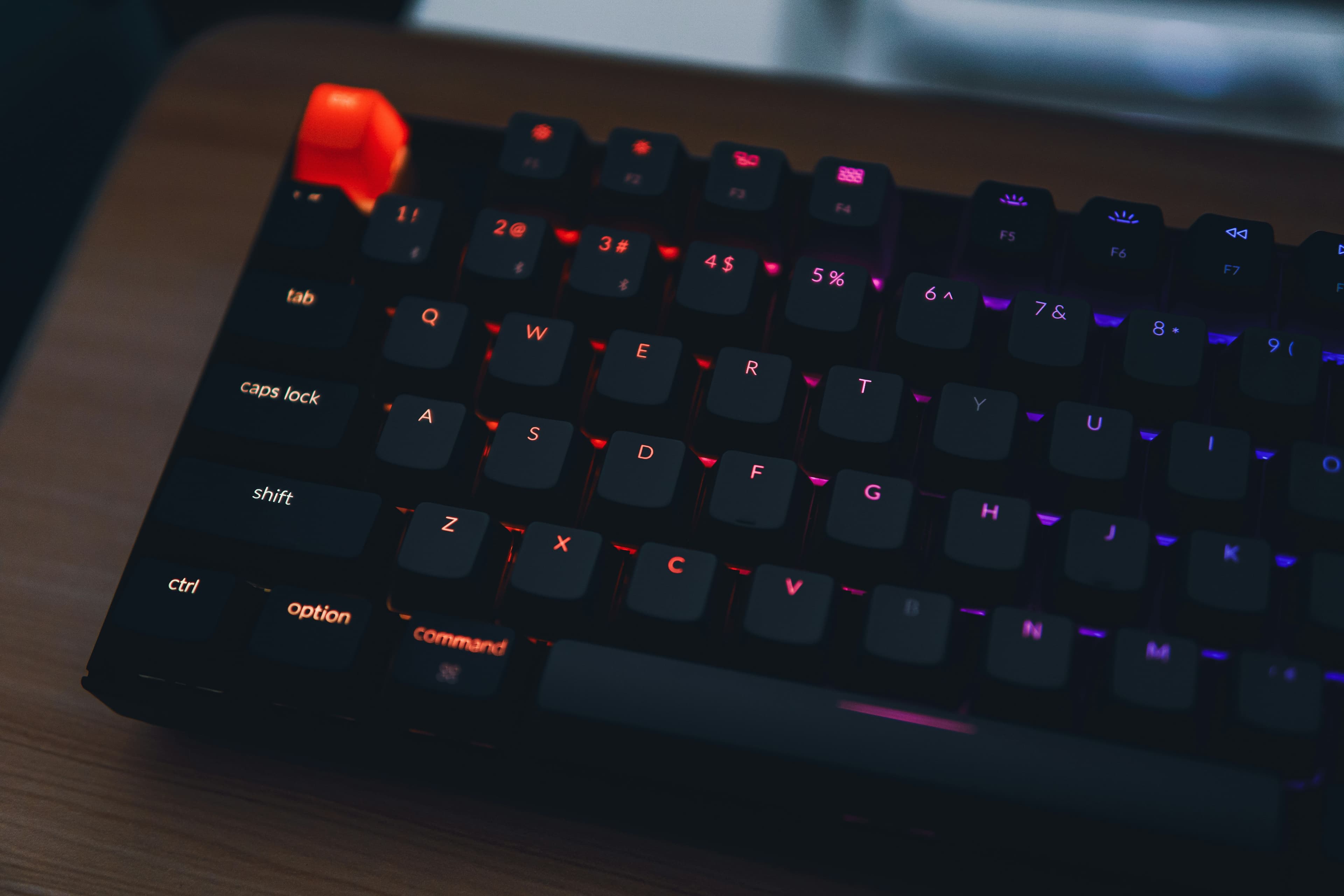
I used to think mechanical keyboards were just expensive clicky toys for enthusiasts. Then I tried one. The difference isn't subtle, it's like switching from a touchscreen to physical buttons. Every keypress gives you clear tactile feedback, so you know exactly when a key has registered. This might sound minor, but when you're typing thousands of lines of code, that certainty reduces mental overhead. You're not second‑guessing whether your keystroke went through, and you're not accidentally double‑pressing keys because you pressed too hard.
Beyond the tactile feel, mechanical keyboards are built to last. The switches are rated for tens of millions of keypresses, which means your keyboard will outlive several laptops. Many models also offer programmable keys, which is a game‑changer for programming. I've mapped common shortcuts, function keys, and even entire command sequences to single keys. When you're debugging or refactoring, having quick access to your most‑used commands saves minutes every hour.
Choosing the Right Switches
Not all mechanical switches are the same. Linear switches (like Cherry MX Red) are smooth and quiet, good for shared spaces. Tactile switches (like Cherry MX Brown) give you a bump when the key activates, which many programmers prefer because it provides clear feedback without being loud. Clicky switches (like Cherry MX Blue) are the loudest but offer the most satisfying feedback. For programming, I'd recommend tactile switches: they give you the feedback you need without driving your coworkers (or family) crazy.
Keyboard Recommendations
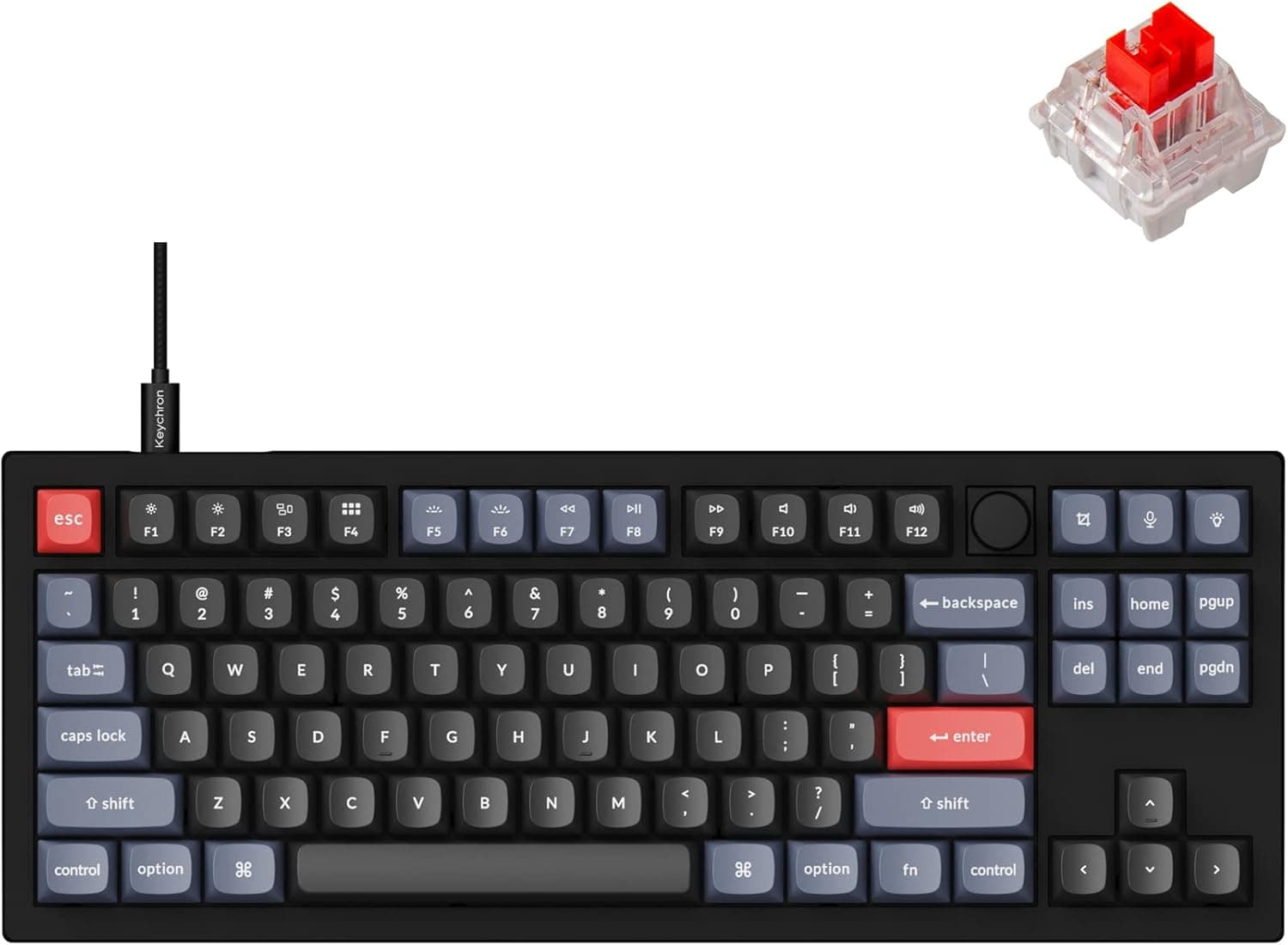
If you can find one, I highly recommend Keychron V3. It's a compact, tenkeyless design that's perfect for programming, you get all the benefits of a mechanical keyboard without taking up excessive desk space. It has excellent build quality, hot-swappable switches (so you can customize your typing experience), and it works seamlessly with both Mac and Windows. The compact layout also means your mouse is closer to your keyboard, reducing shoulder strain during long coding sessions. If you write code for a living, this is the keyboard I would buy first.
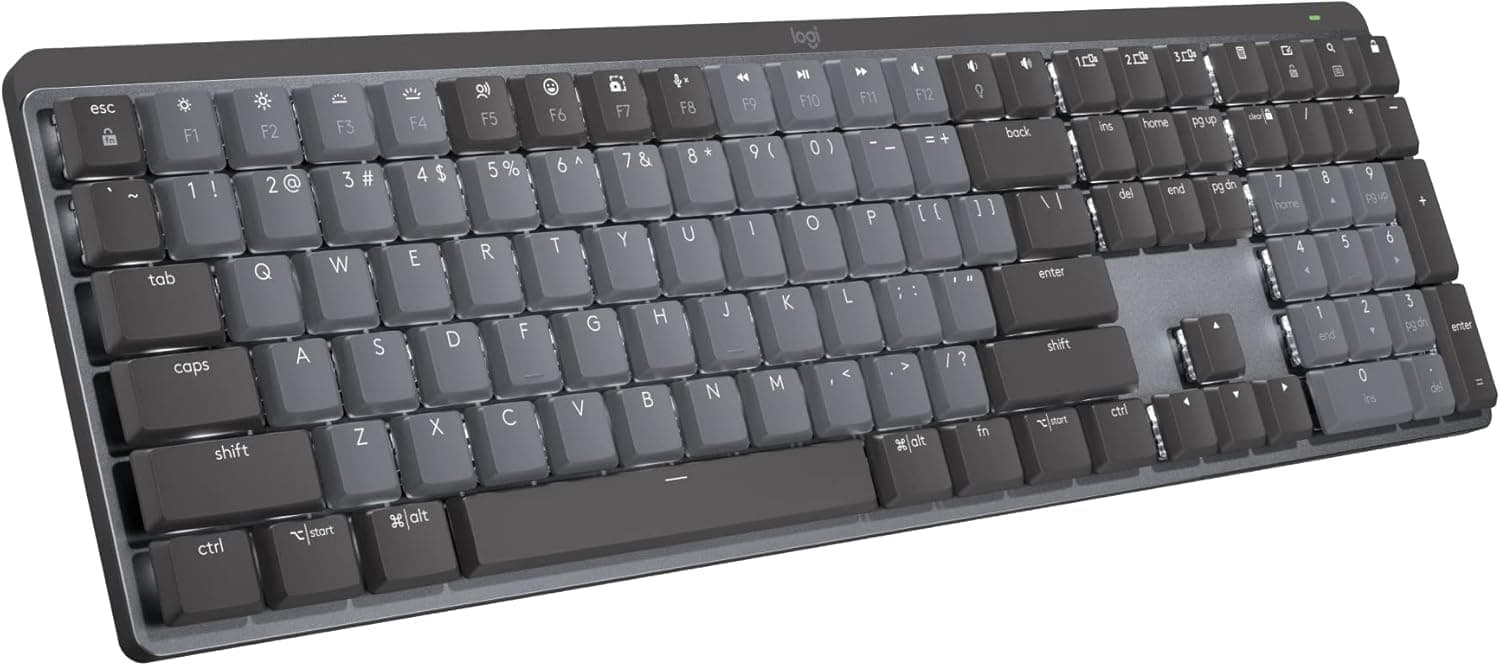
If you prefer a full-size keyboard with a number pad (useful for data entry, spreadsheets, or if you just like having all the keys), I recommend Logitech MX Mechanical Keyboard. Wireless connectivity means one less cable on your desk. It uses tactile switches that are quiet enough for shared workspaces, and it includes programmable keys you can customize for your workflow. The full-size layout is great if you work with numbers frequently or just prefer the traditional keyboard layout.
Keyboard FAQs (Quick Answers)
- Is a mechanical keyboard too loud for shared offices? If noise is a concern, pick tactile or "silent" switches instead of clicky ones, they give you feedback without the sharp click your coworkers will hear.
- Do I really need a mechanical keyboard if I'm just starting out? You can absolutely code on a basic board, but if you're typing for hours every day, the comfort and accuracy gains can pay off surprisingly fast.
- What if I'm not sure which layout to pick? As a default, a tenkeyless layout works for most people. If you do a lot of numeric work, choose a full-size board with a number pad.
The Ergonomic Mouse: Your Wrist Will Thank You
Traditional mice force your hand into a pronated position, palm down, wrist twisted. Hold that position for hours, and you're asking for carpal tunnel syndrome or repetitive strain injury. Ergonomic mice, especially vertical ones, keep your hand in a more natural position, like you're shaking someone's hand rather than flattening your palm on a desk. This simple change can prevent years of wrist pain.
I was skeptical at first. Vertical mice look weird, and I worried about the learning curve. But after a week, my wrist pain, which I'd accepted as normal, completely disappeared. The adjustment period was maybe two days, and now I can't go back to a regular mouse. Many ergonomic mice also come with programmable buttons, which is perfect for programming workflows. I've set up buttons for copy, paste, undo, and even IDE shortcuts. It's like having a second keyboard just for your mouse hand.
The health benefits aren't just personal experience, they're backed by research. A study from the University of California, San Francisco found that workers using ergonomic mice showed a 50% reduction in wrist pain symptoms and a 35% decrease in carpal tunnel syndrome risk over 12 months. The Occupational Safety and Health Administration (OSHA) reports that repetitive strain injuries cost U.S. businesses over $20 billion annually in lost productivity and medical costs. An ergonomic mouse is a small investment that can prevent years of pain and thousands in medical bills.
Mouse Recommendations
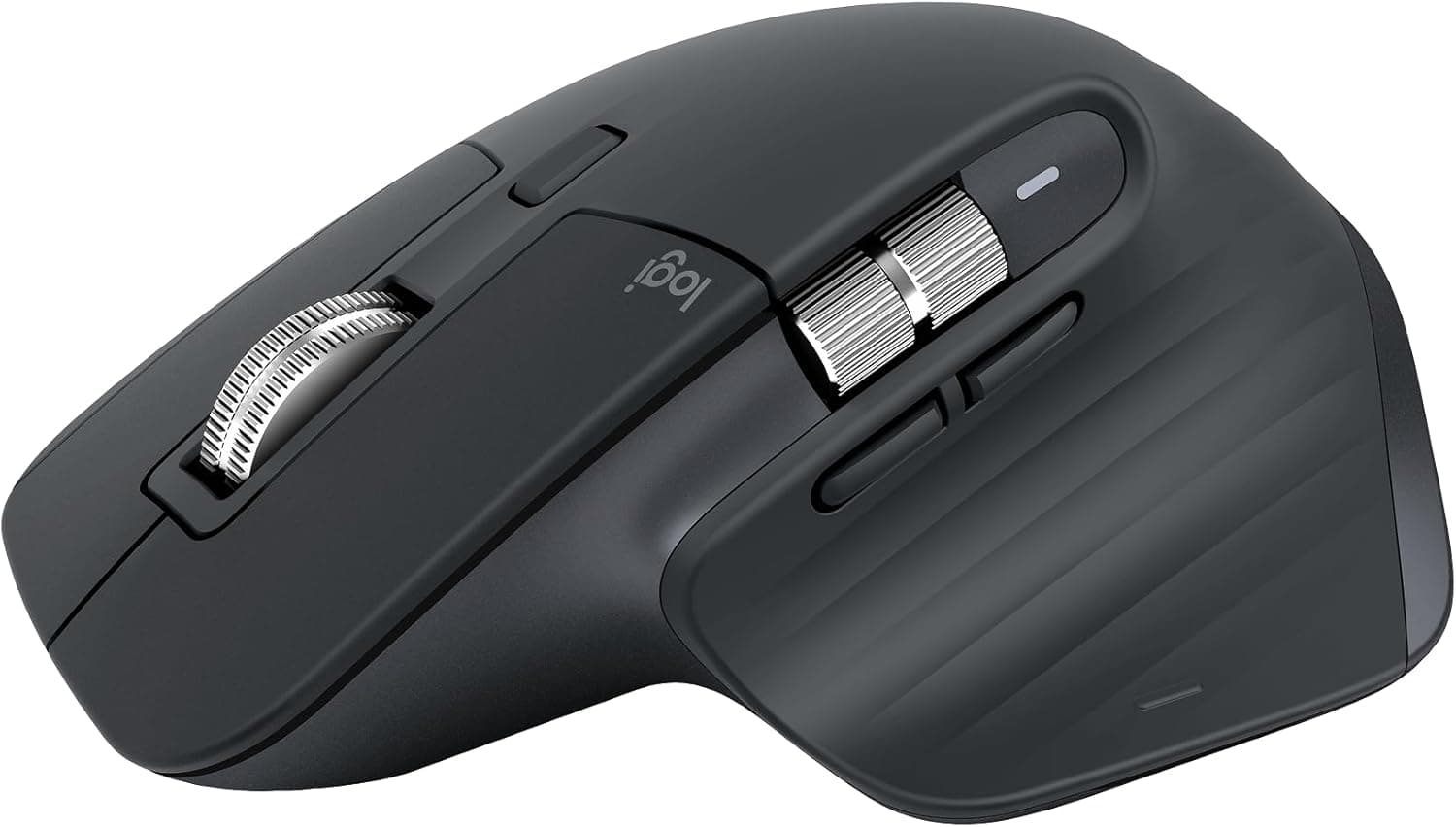
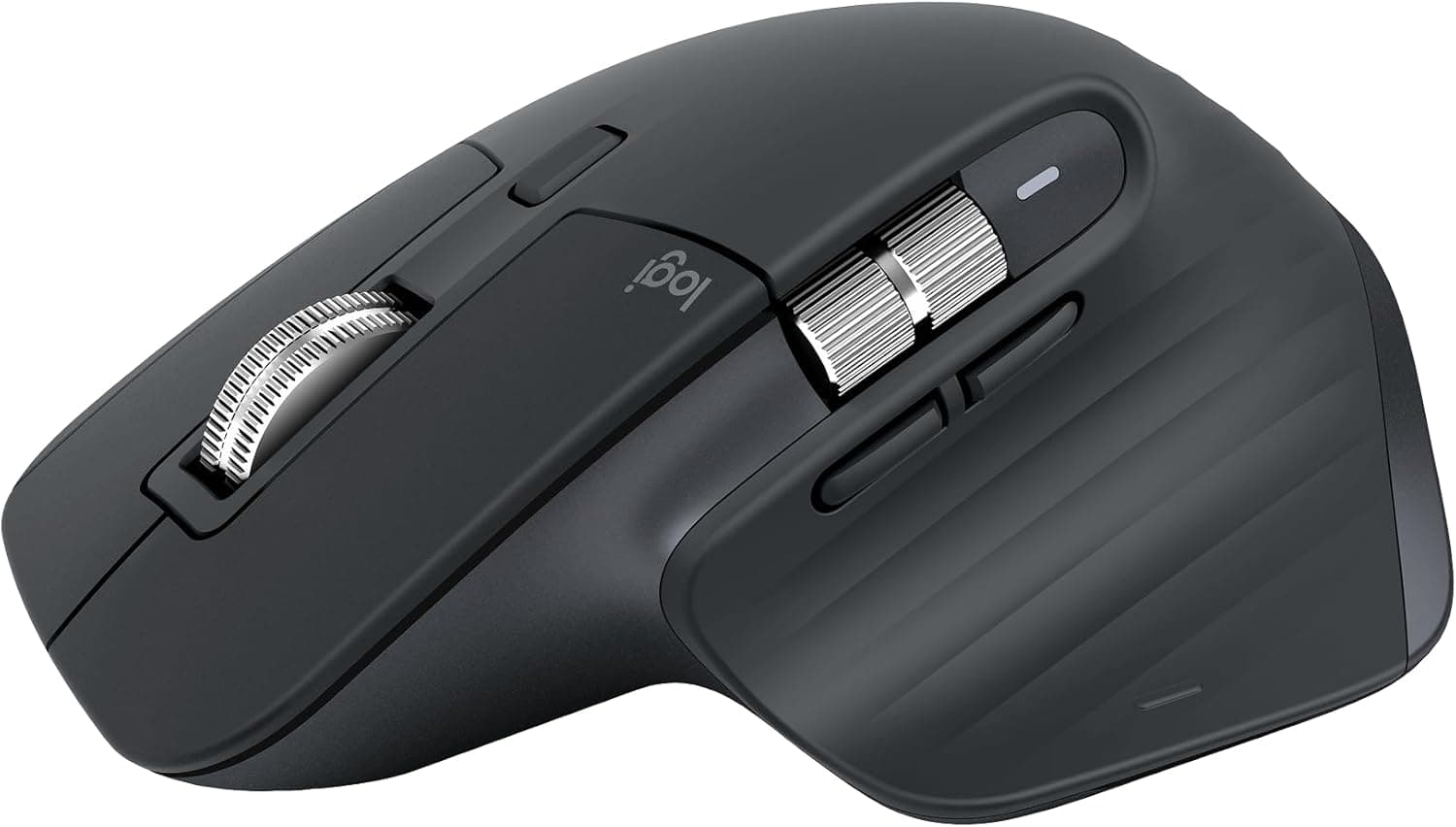
If you're looking for a premium ergonomic mouse, I highly recommend View Product. It features an excellent thumb rest, multiple programmable buttons, and both horizontal and vertical scrolling, perfect for navigating code and documentation. The wireless connectivity is reliable, and the battery life is impressive. It's an investment, but for something you use eight hours a day, it's worth it. For me, this mouse alone was the single biggest improvement in day‑to‑day comfort at my desk.
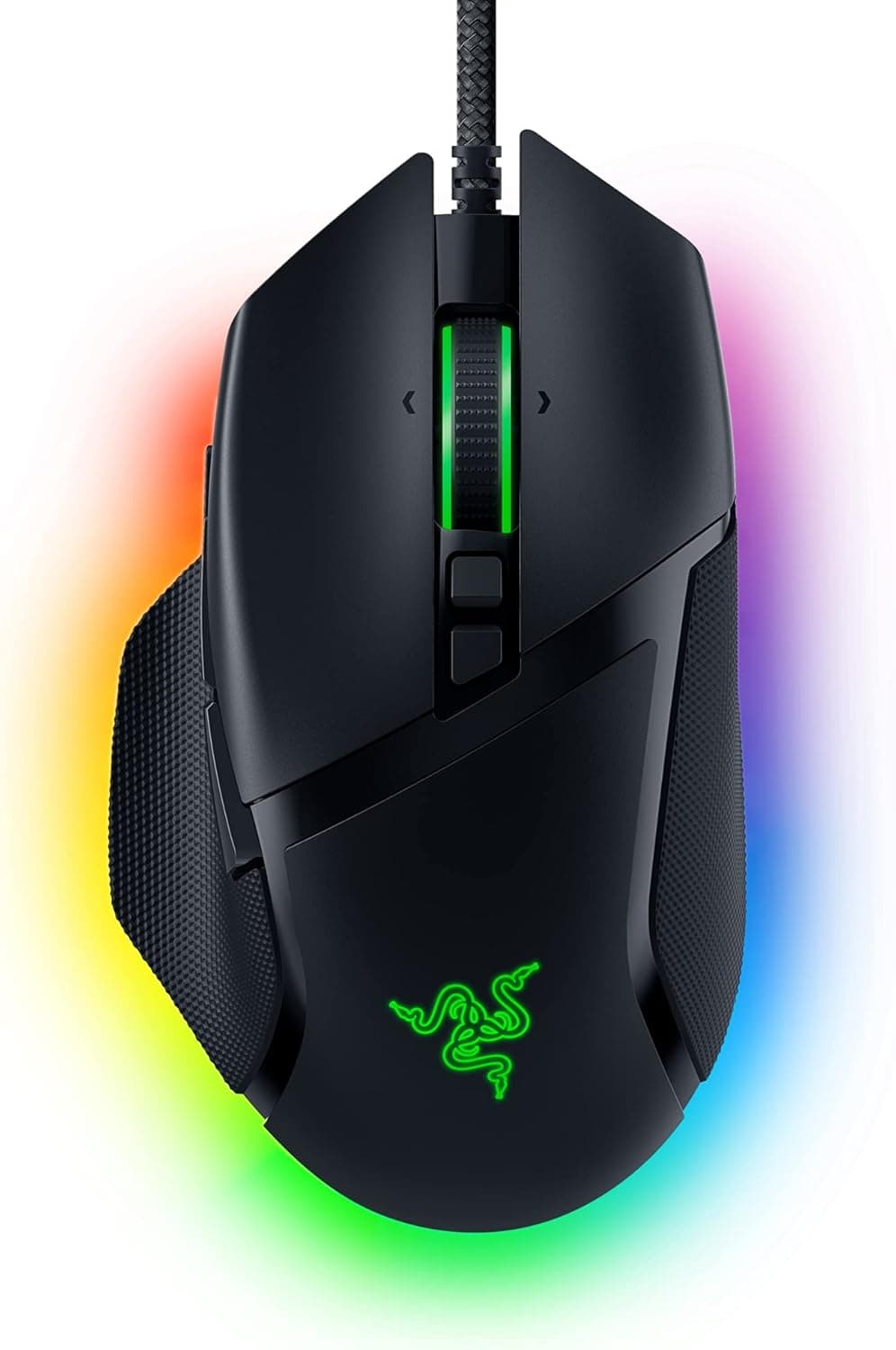
If you're on a budget or prefer a wired mouse (which eliminates any latency concerns), I recommend View Product. It's built for long gaming sessions, which translates well to long coding sessions. The wired connection means zero input lag, and it includes programmable buttons that work great for IDE shortcuts and workflow automation. If you're not ready to spend a lot on a mouse yet, this is an easy step up from a generic office mouse.
Mouse FAQs (Quick Answers)
- Will an ergonomic mouse feel weird at first? Yes, for a day or two, but your hand adapts quickly, and most people find the neutral wrist position far more comfortable within a week.
- Is wireless reliable enough for programming? For day‑to‑day coding, latency is effectively a non‑issue unless you're doing competitive gaming.
- Should I go straight to a premium mouse or start cheap? If you spend 6+ hours a day at a desk, a better mouse is usually worth it. If your budget is tight, a decent wired option is still a huge upgrade over a random office mouse.
Dual Monitors: The Productivity Multiplier
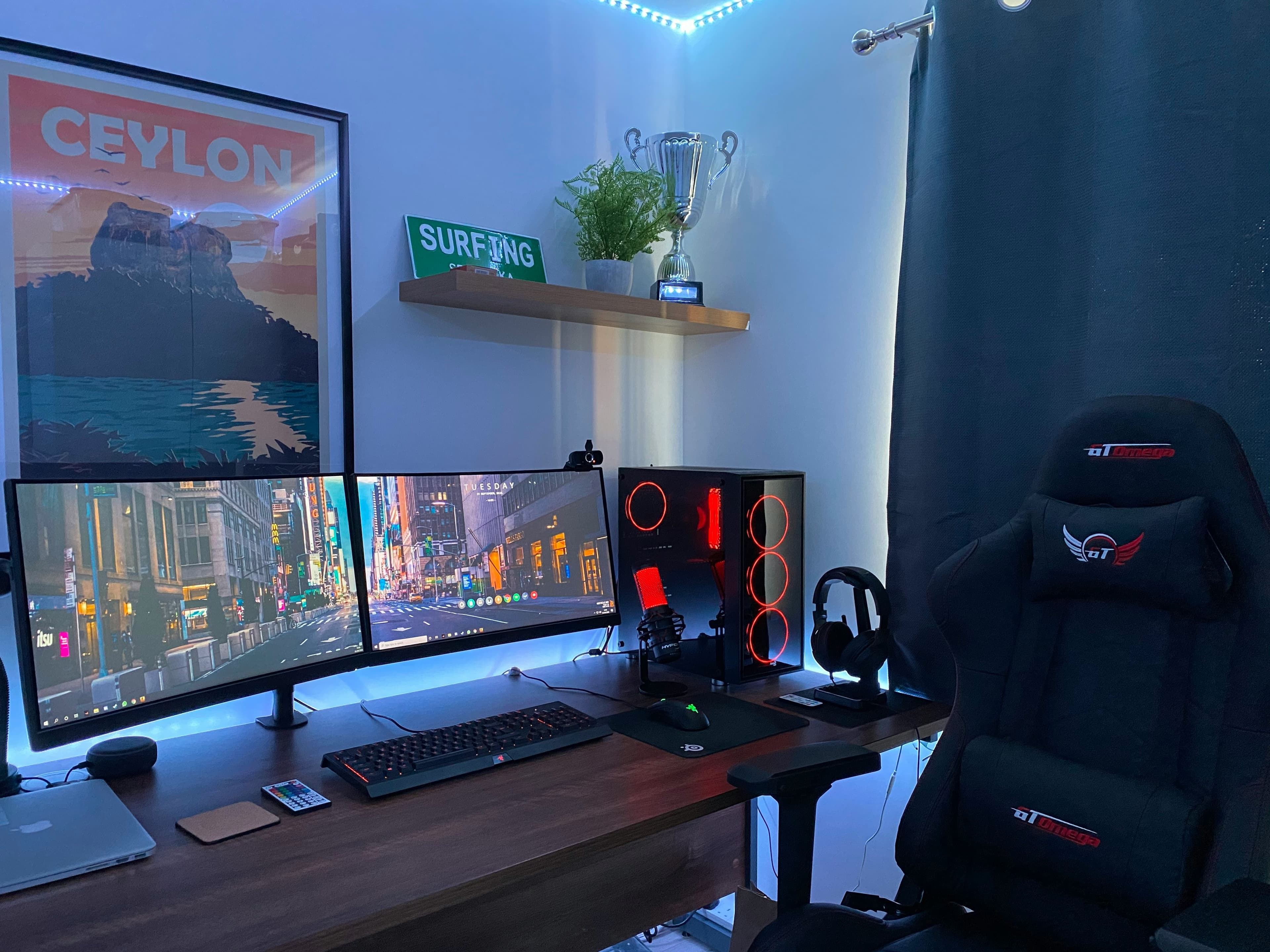
If you're still coding on a single screen, you're doing mental gymnastics every time you need to reference documentation, check your browser output, or compare files. Every Alt+Tab is a context switch, and context switches are expensive. Your brain has to unload the current task, load the new one, find what you need, then switch back. It might only take a few seconds, but those seconds add up, and more importantly, they break your flow.
With two monitors, you can keep your code editor on one screen and your browser, terminal, or documentation on the other. No more tab switching. No more losing your place. You can see your changes in real time, reference API docs without leaving your editor, and debug with your console visible at all times. The productivity gain isn't just about screen real estate, it's about eliminating the cognitive overhead of constantly switching contexts.
You do not need exact percentages to feel the effect. The reason is simple. Context switching is expensive, and every Alt Tab breaks your flow a little. With a second screen you remove a big chunk of that friction.
If dual monitors aren't your thing, maybe you prefer a cleaner desk setup or want to avoid the bezel gap between screens, a wide curved monitor is an excellent alternative. Ultra-wide curved monitors (typically 34 inches or larger) give you the same screen real estate as dual monitors but in a single, seamless display. The curve helps reduce eye strain by keeping everything at a consistent viewing distance, and you can still split your screen into multiple windows using software like Windows Snap or macOS Split View. Many developers actually prefer ultra-wide monitors because there's no bezel interrupting your workflow, and you can have your code editor, browser, and terminal all visible simultaneously without any physical gap.
Setting Up Your Dual Monitor Workflow
The key to making dual monitors work isn't just having two screens, it's organizing them intentionally. I keep my primary monitor (directly in front) for my code editor, and my secondary monitor (to the right) for everything else: browser, terminal, documentation, Slack. This way, my main focus stays on the code, but I can glance at supporting information without breaking my flow. Some developers prefer having the secondary monitor above the primary, which works well if you have the desk space. The important thing is consistency, once you establish your layout, stick with it so your brain can build muscle memory.
The Chair: Your Foundation for Long Coding Sessions
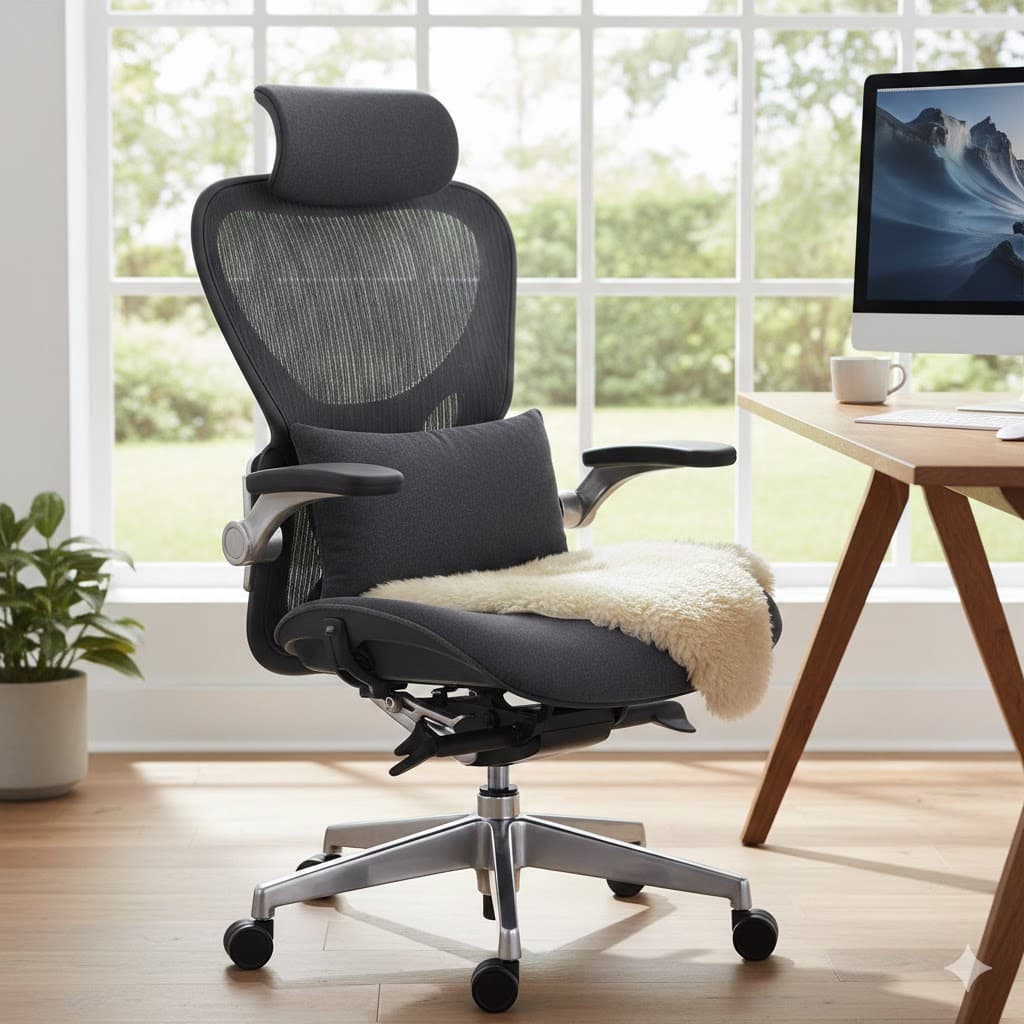
This is the one I wish I'd invested in first. A good chair isn't a luxury, it's a necessity if you're going to code for more than a few hours at a time. I spent years on cheap office chairs that looked fine but left me with back pain, neck strain, and the constant urge to stand up and stretch. Then I tried a proper ergonomic chair, and I realized I'd been working against my body for years.
A quality ergonomic chair supports your entire posture: lumbar support for your lower back, adjustable armrests that keep your shoulders relaxed, a seat that distributes your weight evenly, and enough adjustability to fit your specific body. When you're properly supported, you can code for hours without discomfort. More importantly, you can maintain focus because you're not constantly thinking about your back or shifting positions.
The impact on comfort and productivity is real. Poor seating is a common cause of back and neck issues for people who sit all day. An ergonomic chair isn't just about comfort, it's about preventing chronic pain that can end careers.
What to Look For in a Programming Chair
- Lumbar support that's adjustable, your lower back needs support, and everyone's back is different
- Adjustable armrests that let you keep your elbows at a 90‑degree angle
- Seat depth adjustment so your knees aren't pressed against the edge
- Breathable material, you'll be sitting for hours, and you don't want to overheat
- Tilt and height adjustment that lets you find your perfect position
You don't need to spend thousands on a chair, but you also shouldn't buy the cheapest option. A mid‑range ergonomic chair (around $300 to $600) will last years and pay for itself in productivity and health benefits. Think of it as an investment in your ability to work effectively, because that's exactly what it is.
Chair Recommendations
If you're ready to invest in a premium ergonomic chair that will last decades, I highly recommend Herman Miller Aeron. It's a gold standard for ergonomic office chairs, used by countless tech companies and developers worldwide. It offers excellent lumbar support, highly adjustable armrests, and a breathable mesh design that keeps you cool during long sessions. It's a significant investment, but if you're coding professionally, it's one of the best purchases you can make for your long-term health and productivity. After switching to a better chair, my end‑of‑day back pain went from "normal" to basically nonexistent within a few weeks.
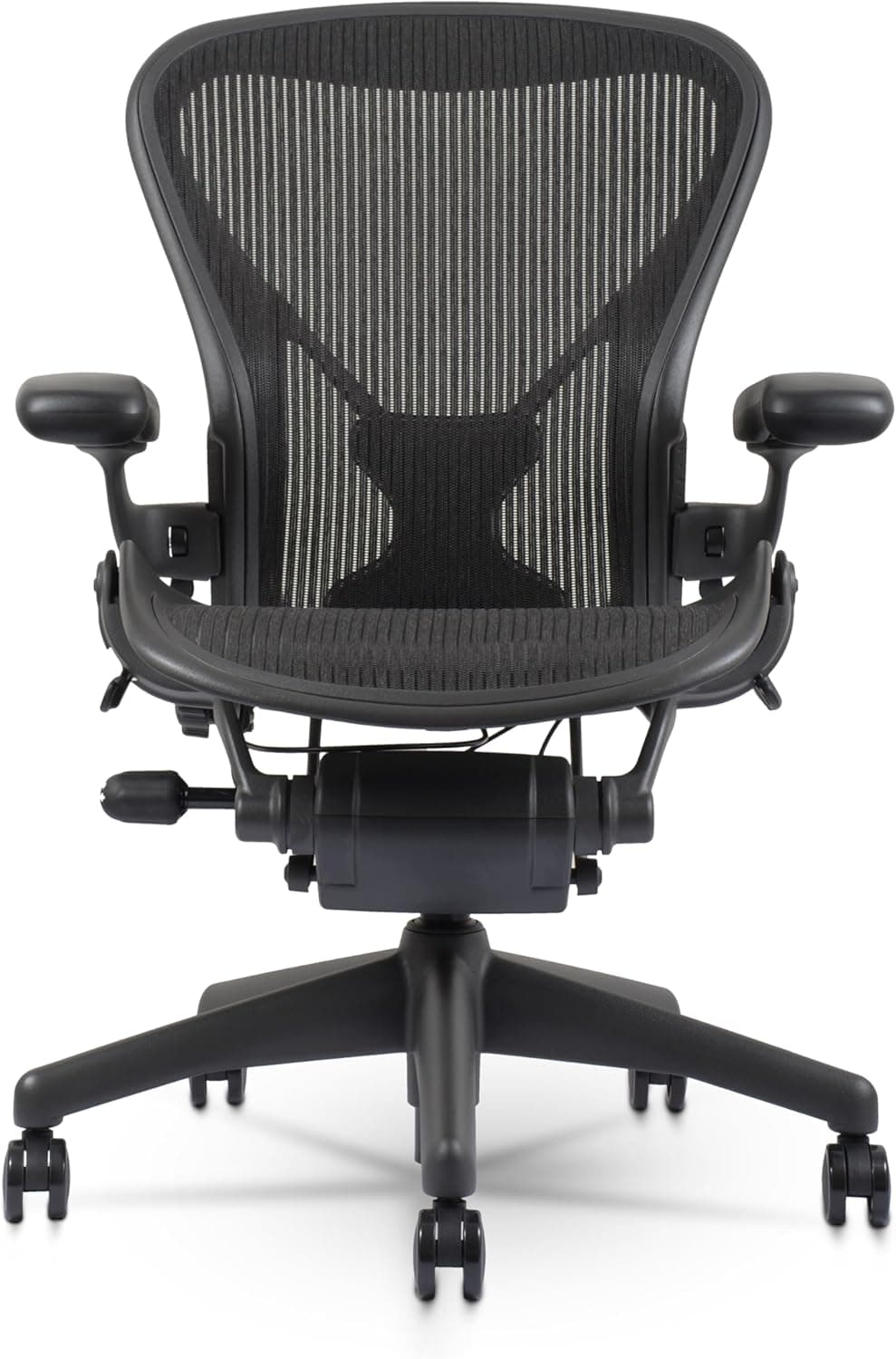
If you're looking for excellent ergonomic design at a slightly more accessible price point, I recommend Steelcase Chair. It offers exceptional adjustability and support, and many developers prefer this style because it encourages more movement and active sitting, which can be helpful during long sessions. Look for a strong warranty. It usually says a lot about build quality. If you want something that still feels premium without the highest end pricing, this is the option I usually point people to.
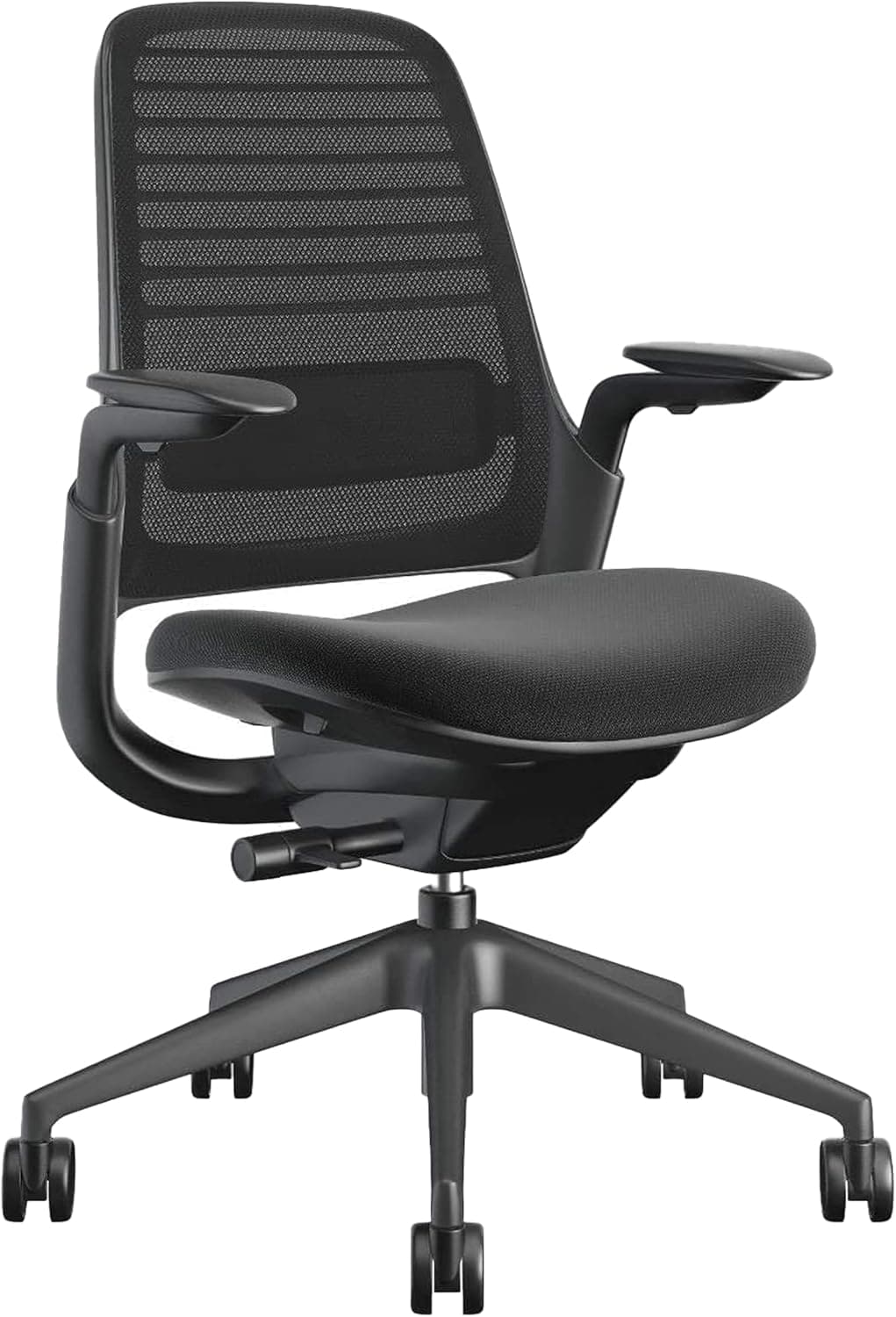
If you're looking for a budget-friendly ergonomic chair option, I recommend SIHOO Ergonomic Chair. While it won't have the same premium build as top-tier chairs, it can still give you solid ergonomic features like adjustable lumbar support, armrests, and height adjustment at a fraction of the cost. It's a great entry point if you're not ready to invest in a premium chair but still want proper support for long sessions.
Good, Better, Best: Choosing a Chair
- Good: any solid mid‑range ergonomic chair with adjustable lumbar support and armrests.
- Better: Steelcase chairs, excellent ergonomics and adjustability at a more accessible price point.
- Best: Herman Miller Aeron, the "buy once, use for a decade" option if your budget allows it.
Recommended Chair + Desk Setups
My current setup uses SIHOO Ergonomic Chair, View Product, and Keychron V3. It is affordable, it works well for long sessions, and it fits me because I game as well.
If you want a more premium feel without going all the way, a great value setup is Steelcase Chair plus View Product plus Keychron V3. You still get serious upgrades in posture, wrist comfort, and typing feel.
The Compound Effect: How It All Works Together
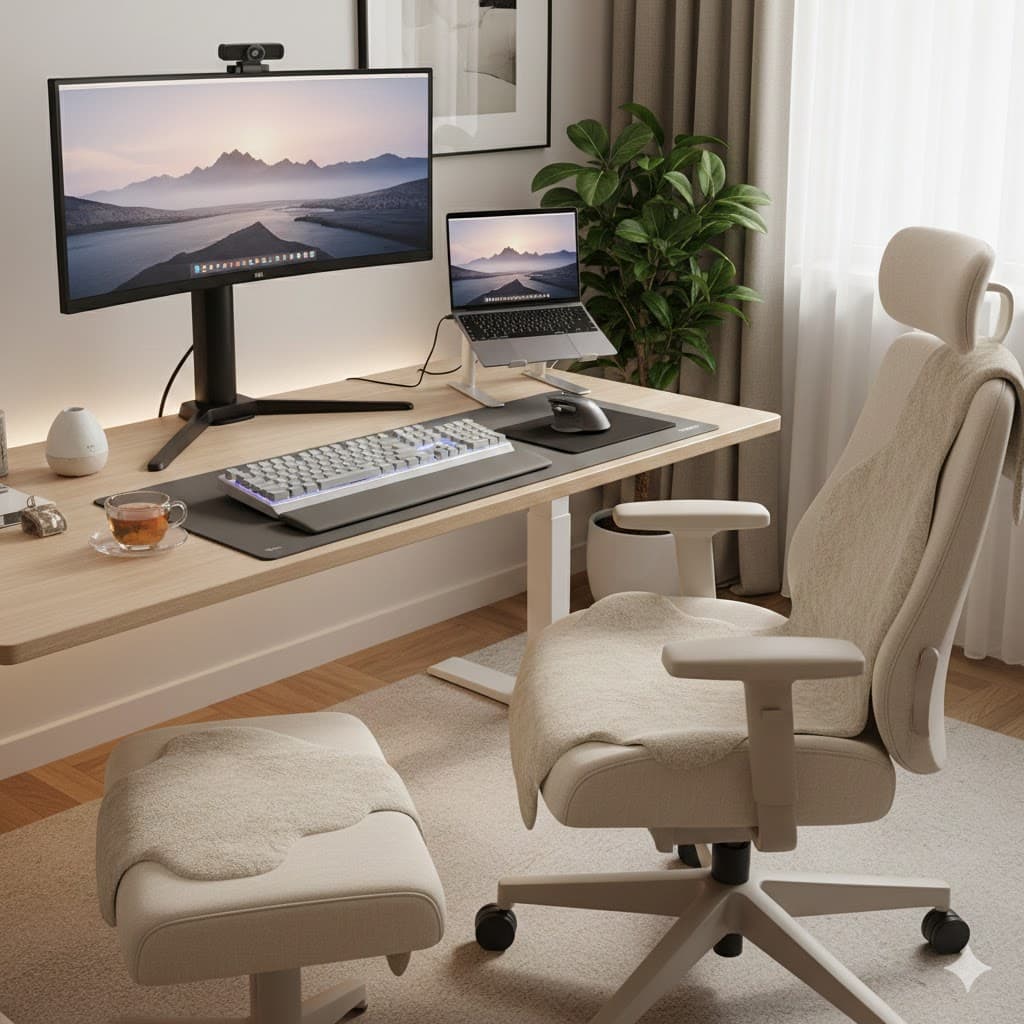
Here's the thing: each component helps on its own, but when you combine them, the benefits multiply. A mechanical keyboard reduces typing errors, which means less time fixing mistakes. An ergonomic mouse prevents wrist pain, which means you can code longer without breaks. Dual monitors eliminate context switching, which means you stay in flow state longer. A good chair supports your posture, which means you can maintain focus for extended sessions. Together, they create an environment where you can code effectively for hours without the physical or mental fatigue that comes from fighting your setup.
I've tracked my productivity before and after making these changes, and the difference is measurable. I code faster because I'm not constantly adjusting my position or switching tabs. I stay focused longer because I'm not distracted by discomfort. I finish the day feeling energized instead of drained. And perhaps most importantly, I'm building sustainable habits that will let me code effectively for decades, not just until my body gives out.
The research generally matches the lived experience. Better ergonomics tends to reduce discomfort and stress over time, and it makes it easier to keep focus during long sessions. The biggest win is consistency. When your body is not complaining, you can do more good work with fewer forced breaks.
Making the Investment
I know the price tag can be intimidating. A mechanical keyboard, ergonomic mouse, dual monitors, and a quality chair can easily cost $1,000 to $1,500. But here's how I think about it: if this setup lets me code 10% faster and work 20% longer without fatigue, it pays for itself in a few months. More importantly, it's an investment in your long‑term health. Back problems, wrist injuries, and chronic pain don't just affect your work, they affect your life.
You don't have to buy everything at once. Start with the chair, it's the foundation. Then add the monitors if you're working on a single screen. Then the keyboard, then the mouse. Each addition will make a noticeable difference, and you can spread the cost over time. But once you experience the difference, you'll wonder why you waited so long.
Conclusion
Your programming setup isn't just about comfort, it's about creating an environment where you can do your best work. When you're not fighting your tools, when you're not distracted by discomfort, and when you can maintain focus for extended periods, you become more productive and you build sustainable habits that will serve you throughout your career. The investment might seem significant, but the returns in productivity, health, and job satisfaction add up fast.